

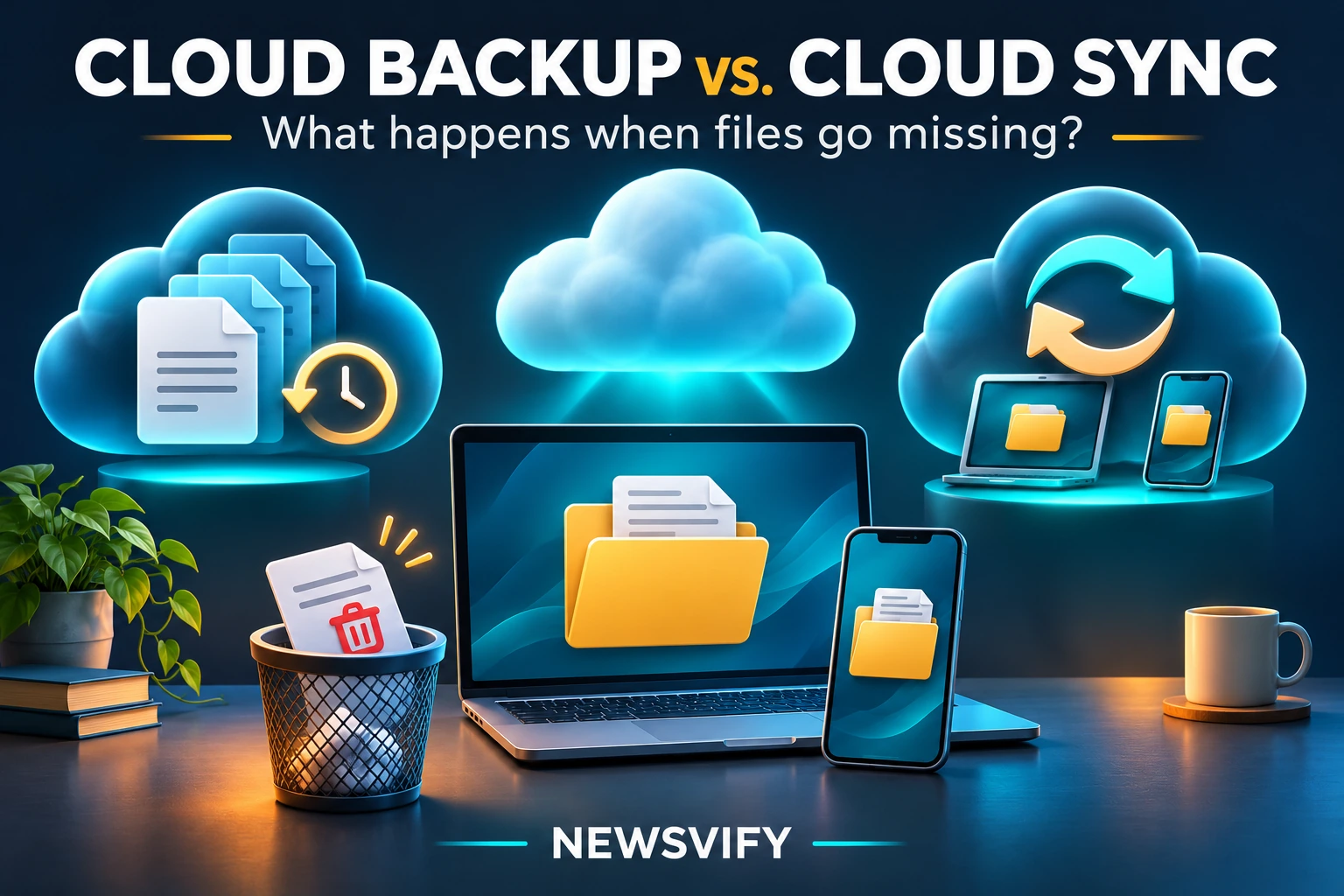
Cloud sync keeps files updated across devices. Cloud backup creates copies you can restore after data loss. The difference is what happens when something goes wrong: sync may carry an accidental deletion to other devices, while a backup with retained history may let you recover an earlier copy. Some services offer both functions, so check their recovery features rather than relying on the product label. [1][7][8]
Sync can still help if your laptop is lost: files that successfully uploaded can remain available in your cloud account. But that does not protect files that never uploaded or guarantee that a deleted version will remain recoverable. [2][3]
Cloud Backup vs. Cloud Sync: The Main Difference
Sync is useful when you want to work on the same files across devices. Backup serves a recovery purpose. Neither automatically means that every file, app, and setting on your device is protected. [1][6][7]
| Question | Cloud sync | Cloud backup |
| What is its main job? | Keep selected files current and accessible across devices. | Keep copies of selected data for restoration. |
| What happens after deletion? | The deletion may synchronize; recovery depends on trash, version history, or other restore features. | An earlier copy may remain, depending on retention and deletion policies. |
| What happens after device loss? | Uploaded files may still be accessible through the account. | Successfully backed-up data may be restored to a supported replacement device. |
| What should you verify? | Uploaded files, account access, and recovery options. | Included data, last successful backup, retained versions, and restore method. |
These are functional distinctions, not guarantees about a particular app. A service can combine synchronization with useful recovery tools. [1][3]
Scenario 1: You Accidentally Delete a Folder
Hypothetical example: You delete a folder of household documents while cleaning up your laptop. If it sits in a synchronized location, the service may treat that deletion as a change to apply elsewhere. Microsoft documents this behavior for synced OneDrive files. [8]
A backup with a retained copy from before the deletion could offer another recovery route. However, the folder must have been included, the backup must have completed, and that older copy must still be available. A backup that only preserves the latest state may not provide the history you need. [7]
Check Trash Before Assuming the File Is Gone
Start with the affected service’s deleted-items area. Recovery periods differ by product and account type; do not assume every cloud service uses the same rules.
| Service or account | Documented recovery window | Important limit |
| Google Drive | Files remain in Trash for 30 days. | Google says files are permanently deleted after that period. [4] |
| OneDrive personal | Deleted files can be restored within 30 days. | Files permanently deleted from the OneDrive recycle bin cannot be restored through that recovery route. [3] |
| OneDrive work or school | Normally 93 days. | An administrator may change the retention setting. [3] |
| Apple Photos | Recently Deleted retains photos and videos for 30 days. | With iCloud Photos, deleting an item also deletes it from other devices using that library. [5] |
For an unwanted edit rather than a deletion, check version history. Some plans also offer broader rollback tools: Microsoft documents a feature for Microsoft 365 subscribers that can reverse OneDrive changes from the previous 30 days. Check its scope before restoring an entire collection. [3]
What a Retained Backup Can—and Cannot—Restore
Think of recovery as finding a usable copy from before the mistake. A backup cannot supply a file it never captured. It also cannot restore a particular version if that version has expired or been replaced. NIST identifies conducting, maintaining, and testing backups as parts of a recovery plan—not simply creating a copy once. [7]
Ask your provider: “If I delete this file today and notice later, how long will a recoverable copy remain?” Look for an answer covering deleted files, not just edited-file versions.
Scenario 2: Your Laptop or Phone Is Lost
Hypothetical example: Your laptop disappears, but you did not delete its documents. Files that finished uploading to a cloud service may still be available from another device. Losing hardware is different from issuing a deletion command. Google describes Drive for desktop as storing files in the cloud and keeping edits synchronized. [2]
Your next steps depend on what you need: access to documents, restoration of backed-up files, or recovery of a phone’s settings and app data. Those are different tasks. Apple, for example, separates synchronized information from the data stored in an iCloud device backup. [6]
Account access matters too. Before an emergency, establish how you would sign in if your missing phone were also your usual verification device. A surviving cloud copy is useful only if you can regain authorized access to it.
Files That Never Uploaded Are Still at Risk
Check the actual files rather than assuming the whole device is covered. A document outside your selected folders or an unfinished upload may not have a cloud copy. A backup also has a cutoff: changes made after its last successful run may be missing.
Open a few important files through the service’s website and compare their contents with your latest work. Distinguish cloud storage from local availability: Google Drive’s streaming and mirroring options store files differently on the computer. Seeing a filename does not by itself establish that you have a separate local recovery copy. [2]
Why iCloud Photos and iCloud Backup Are Different
Apple says iCloud Backup stores device information that is not already syncing to iCloud. When iCloud Photos is enabled, those photos and videos synchronize separately and are not included in the daily device backup. [6]
That matters after a mistake. Deleting a photo from an iCloud Photos library can delete it across connected devices. Recently Deleted offers a recovery period, but enabling iCloud Backup does not create a second photo archive inside each device backup. [5][6]
For irreplaceable pictures, check your arrangements for keeping an additional recoverable copy. Do not infer protection from the presence of both a Photos setting and a Backup setting.
How to Check Whether You Can Recover Your Files
Use this editorial checklist to evaluate your setup. It is a practical exercise, not a claim that we tested or certified any product.
- List what matters. Include documents, photos, and any app data you would struggle to replace.
- Check coverage. Identify which service or backup includes each item. Look for excluded folders and data stored only on a device.
- Check completion. Review the last successful backup or upload and investigate pending items or errors.
- Check recovery history. Find the rules for deleted files and older versions, including any plan or account restrictions.
- Check independence. Determine whether the same deletion or loss of account access could affect every copy.
- Test a small restore. Use disposable files, then open the restored copies and confirm that their contents are correct.
For broader setup choices, compare these backup methods for your computer. Choose a routine based on what you need to recover and how much recent work you can afford to lose.
Frequently Asked Questions
Is an Offline Synced Folder a Separate Backup?
Not automatically. “Available offline” means you can use the downloaded files without an internet connection. It does not establish an independent restore history. Microsoft documents both offline availability and deletion propagation within its sync system. [8]
Does Buying More Cloud Storage Create a Backup?
More capacity does not establish what gets copied or how it can be restored. You still need to check the relevant sync or backup settings, included data, and successful completion. Apple’s distinction between synchronized data and device-backup contents illustrates why storage capacity alone cannot answer that question. [6]
Does Cloud Backup Restore My Entire Computer?
Do not assume it does. Check whether the product restores selected files, device settings, applications, or a complete system. A file-copy service and a device-restoration feature can have very different scopes. [1][6][7]
How Can I Test Recovery Without Risking Important Files?
Create a disposable document containing recognizable text and wait for the service to capture it. Test deletion recovery using that document only. If version history is offered, separately test retrieving an earlier edit. Restore to a separate location where supported, open the result, and compare it with what you expected. Do not empty a real trash folder or run a whole-account rollback just to test one file.
Related Articles
- Account access after losing your phone — Understand how passkeys, alternative sign-in methods, and recovery requirements affect access to your accounts.
Sources and References
- Dropbox. “Backup vs. sync: What’s the difference?” February 2, 2025. https://www.dropbox.com/resources/difference-between-backup-and-sync
- Google Drive Help. “Use Google Drive for desktop.” Undated; accessed November 12, 2026. https://support.google.com/drive/answer/10838124?hl=en
- Microsoft Support. “Restore files deleted from your OneDrive.” Undated; accessed November 12, 2026. https://support.microsoft.com/en-us/onedrive/restore-your-onedrive-files
- Google Drive Help. “Recover a deleted file in Google Drive.” Undated; accessed November 12, 2026. https://support.google.com/drive/answer/1716222
- Apple Support. “Delete photos on your iPhone or iPad.” Publication/update date not available in the retrieved text; accessed November 12, 2026. https://support.apple.com/en-us/104967
- Apple Support. “What does iCloud back up?” May 1, 2025. https://support.apple.com/en-us/108770
- NIST/NCCoE. “Protecting Data from Ransomware and Other Data Loss Events: A Guide for Managed Service Providers to Conduct, Maintain, and Test Backup Files.” April 24, 2020. https://csrc.nist.gov/pubs/other/2020/04/24/protecting-data-from-ransomware-and-other-data-los/final
- Microsoft Support. “Work with synced files in File Explorer.” Undated; accessed November 12, 2026. https://support.microsoft.com/en-us/sharepoint/sync/work-with-synced-files-in-file-explorer


